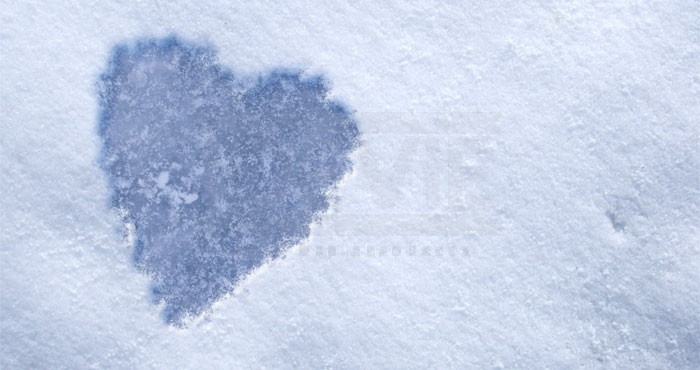
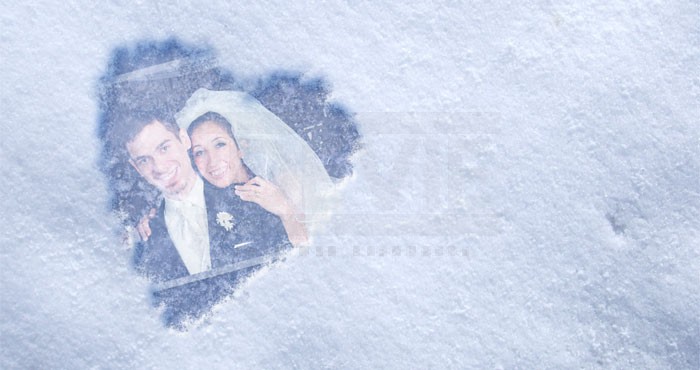
Valentines Day is less than a week away, and you’re probably already looking to create some sort of Valentine’s related design.
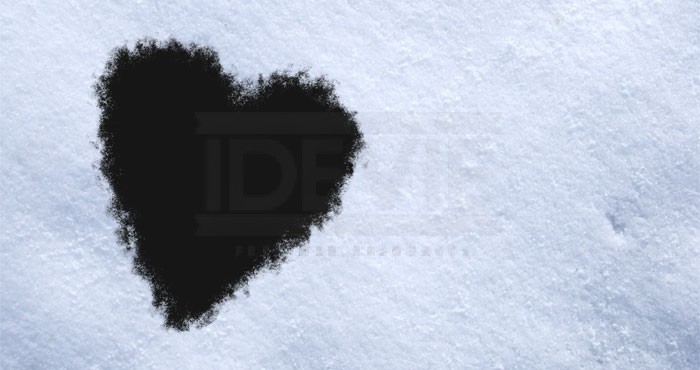
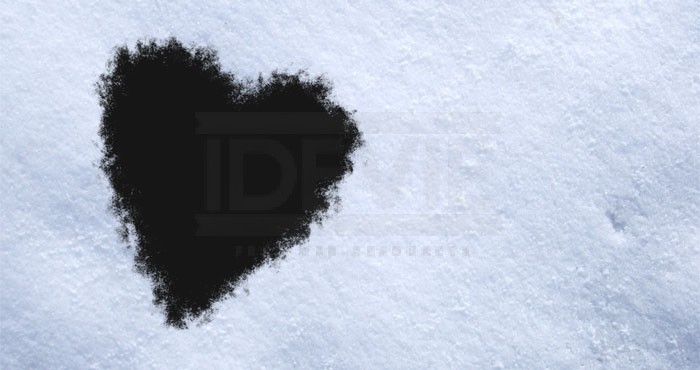
If you guys follow the official Photoshop Facebook page, you may have seen them post thisimage not too long ago, before their winter vacation. Reading through the comments, many of their users wanted a tutorial on how to create a similar effect. So today, we’re going to take a boring image of snow, and give it a little love. The snow image that I’m using for this tutorial was found over on DeviantArt.com.
Written
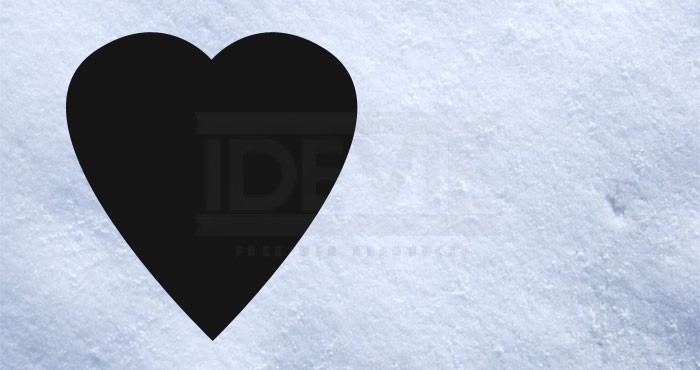
The first thing we need to do, is create our shape. You’re free to use any shape that you wish, but for the sake of Valentines Day, we’re going to use a heart. Lucky for us, Adobe has included a preset heart in Photoshop.
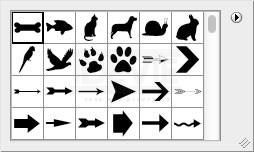
In your Tools Bar, grab your Custom Shape Tool, which may be hiding with your other Shape Tools, then at the top on your OptionsBar, open up the Shape Finder.
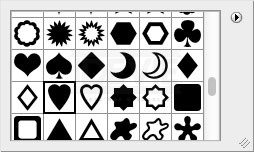
If you don’t see the heart as one of your options, you may need to load some additional shapes. If this is the case, click on the arrow at the top right corner of your Shape Finder, select Shapes, then Append.
You should now have two heart shapes at your disposal. When you decide which one to use, drag out your shape on your document.. Don’t worry too much about the color, as we’re going to be adding a gradient shortly.
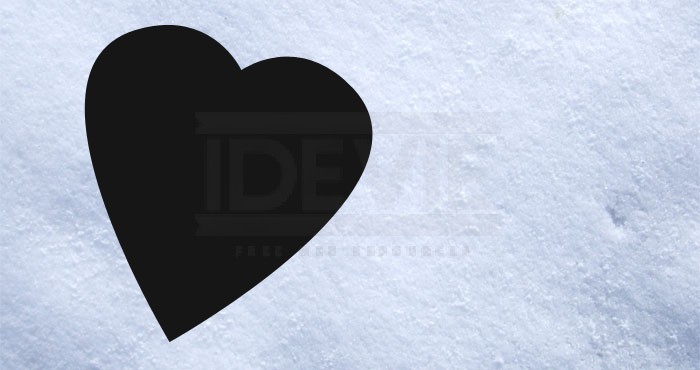
If you choose, you can quickly enter Free Transform Mode (Edit > Free Transform Path) in order to rotate the shape, to stray away from a dead-on angle.
At this point, we need to add the snow around the edges of the heart. To do this, we’re going to create a custom brush. Using a custom brush has many advantages. One, it’s completely customizable. Two, it’ll save us from tedious masking.
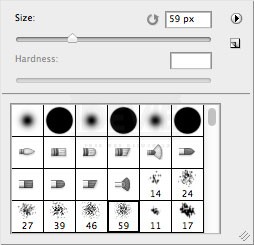
To save us a little bit of work, we’re going to start with one of Photoshop’s preset brushes. After you’ve selected yourBrush Tool, under the Brush Picker, select a brush with ‘stippled’ edges. Photoshop has many of these available, but if you’re following along, I’m starting off with the 59 pixel Spatter brush.
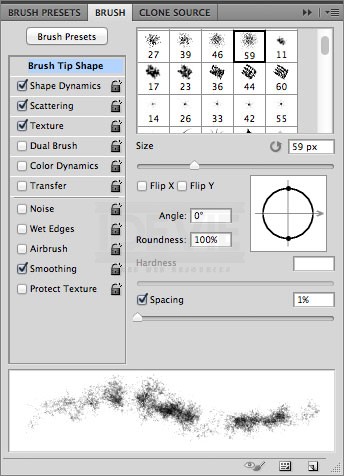
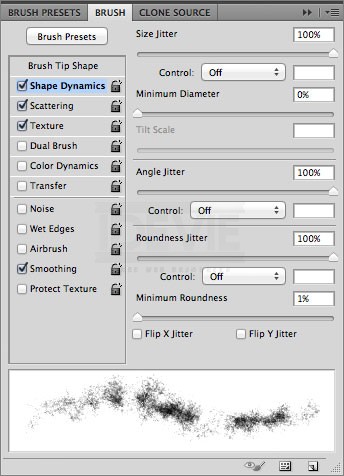
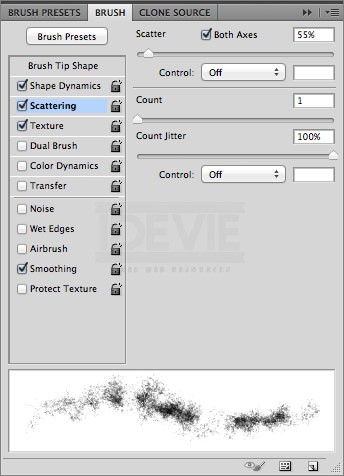
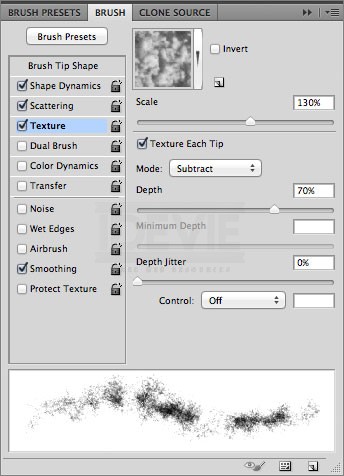
Once your brush is selected, it’s time to customize. As with any brush customization, we need to reveal our Brush Panel. This can be activated by going to Window > Brush. Here are the settings you’ll want to focus on for this brush.
At this point, your brush is complete. If you want to save it for future use, select New Brush Preset from the drop down menu at the top right corner of the Brush Panel.
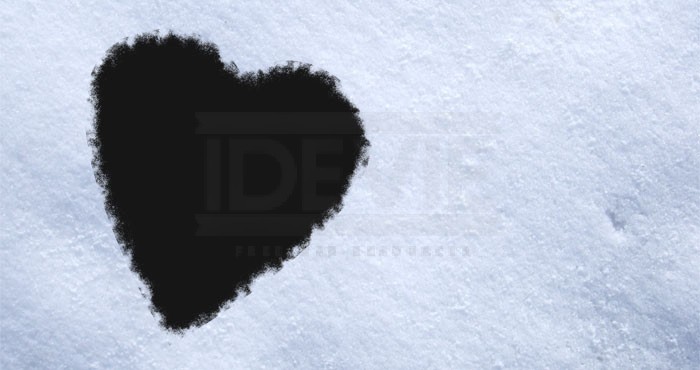
Now we can start applying this brush to our design. There are a few ways to go about this, but I think the most non-destructive way to do so, would be to add a Layer Mask to our shape, and then paint around the edges, which should give us the illusion that snow has fallen onto our shape.
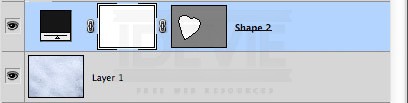
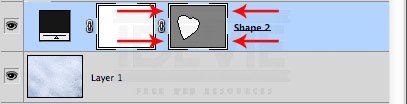
At the bottom of your Layers Panel, click on the Add a Mask () button to apply a blank Layer Mask to your shape layer.
Once that’s done, we need to make sure that our shape’s path is active. Depending on the color of your shape, you may or may not be able to visible see the path. If you take a look at the Vector Mask Thumbnail in your Layers Panel, you should see a broken frame around each corner. This indicates that the path is active. If you don’t see this frame, click on the Vector Mask to activate it.
Once the path is activated, we need to stroke the path! Which basically means we’re going to tell Photoshop to paint our brush completely around our shape. For the first stroke, follow these steps:
– Grab your Pen Tool. – Right click on the path, choose Stroke Path.
– Make sure that Brush is the Tool selected, Simulate Pressure is off, and press OK.
Now that our first Stroke is complete, we don’t have to do those steps over and over again. A quick way of doing all of these steps, is with your Brush Tool active, and making sure the Path is still active (broken frame), simply pressReturn or Enter on your keyboard. I’m going to apply the Stroke two or three times to ensure that the border of the shape gets nice and covered.
Once you’ve applied the stroke a few times, increase the size of your brush by pressing your right Square Bracket key a few times (around 100px), and then apply two more strokes.
Continue this process until you’re happy with the way the mask is looking. I’m going to stop at 125 pixels to avoid loosing too much quality on my brush.
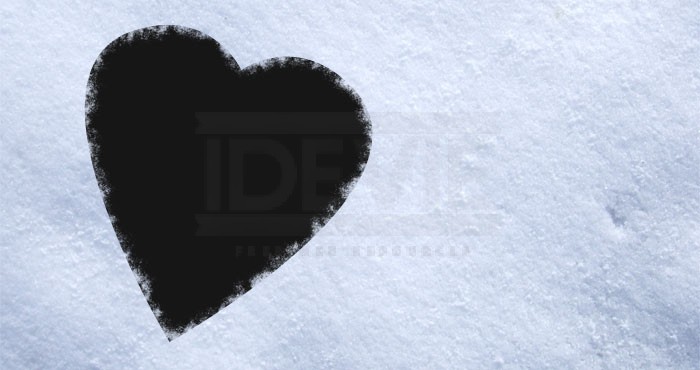
Clicking on the Vector Mask in your Layers Panel will hide the path, allowing you to see the border of your shape. If there are any areas that look too sharp, decrease the size of your brush again, and paint over those left over bits.
It’s looking quite nice, but we need to add a few Layer Styles to one, add the gradient, and two, add a bit of an edge to the snow.
Layer Styles
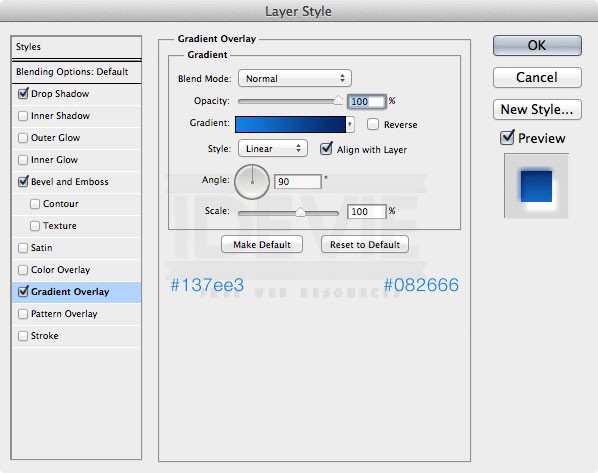
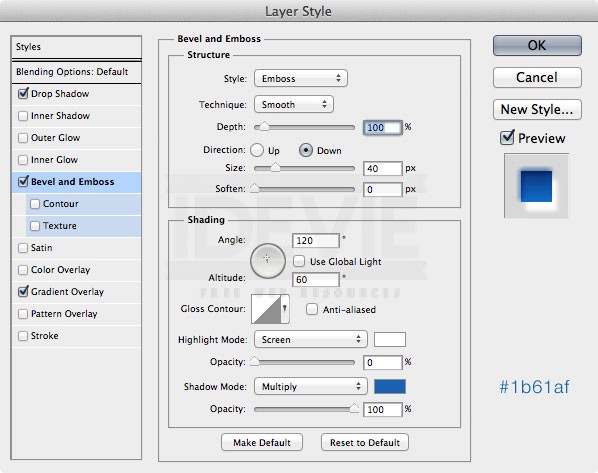
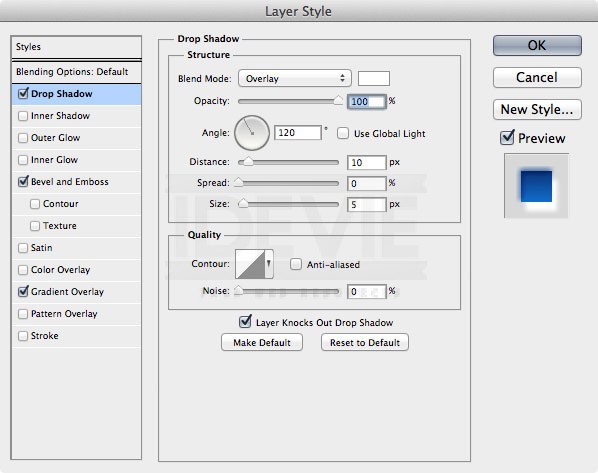
In this section, we’re going to be adding a few Layer Styles to our masked heart shape. A Gradient Overlay, a Bevel and Emboss, and a Drop Shadow. Once they are added, we’re also going to look at a fun alternative for your design. Let’s start with theGradient Overlay. The settings for all the Layer Styles are below. Note, if your design is larger or smaller, you may need to alter the Layer Styles.
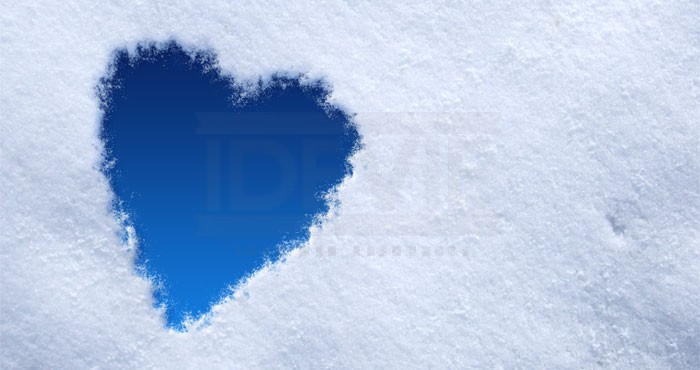
Once the Layer Styles are added, your result should look similar to the one below.
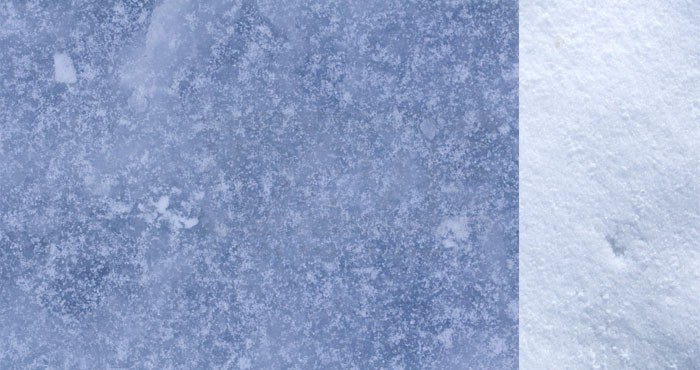
Now that our basic design is finished, we can get fancy! Instead of the blue gradient, we can add an additional texture inside the heart. I’m going to use an ice texture, found on CGTextures.com. Once you have a texture chosen, place it on top of of your heart layer.
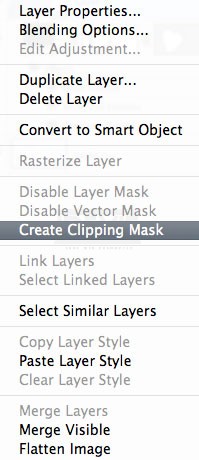
Once the texture is in place, in your Layers Panel, right-click on the texture layer, and choose Create Clipping Mask.
This will place your new texture inside the heart shape. However, you may notice that your new texture just disappeared! This is because the Gradient Overlay on the previous layer is active. Turn off the Gradient Overlay to reveal the new texture.
Now to really get fancy, grab a romantic image, clip it, change the Blend Mode to Screen, and slightly decrease the Opacity. Add a basic white Stroke and Drop Shadow to finish it off.
 ) button to apply a blank Layer Mask to your shape layer.